


In short
- Faster ordering. The Place order button places an order with a single click, order sizes accept decimals, and Phase-out replaces snoozing with clearer choices.
- Clearer deliveries. The deliveries side panel can show total weight, volume and container count.
- Help on hand. A new Support center, an always-visible AI Assistant button and a resizable AI Assistant panel.
Biggest time-saver this round: the Place order button lets you place an order straight from Optiply's proposal in one click, while drafts stay available for the orders that need a second look.
What's changed in how you place orders?
Placing an order now takes fewer steps, and you get more precise control over what goes into it. Three updates make that happen.
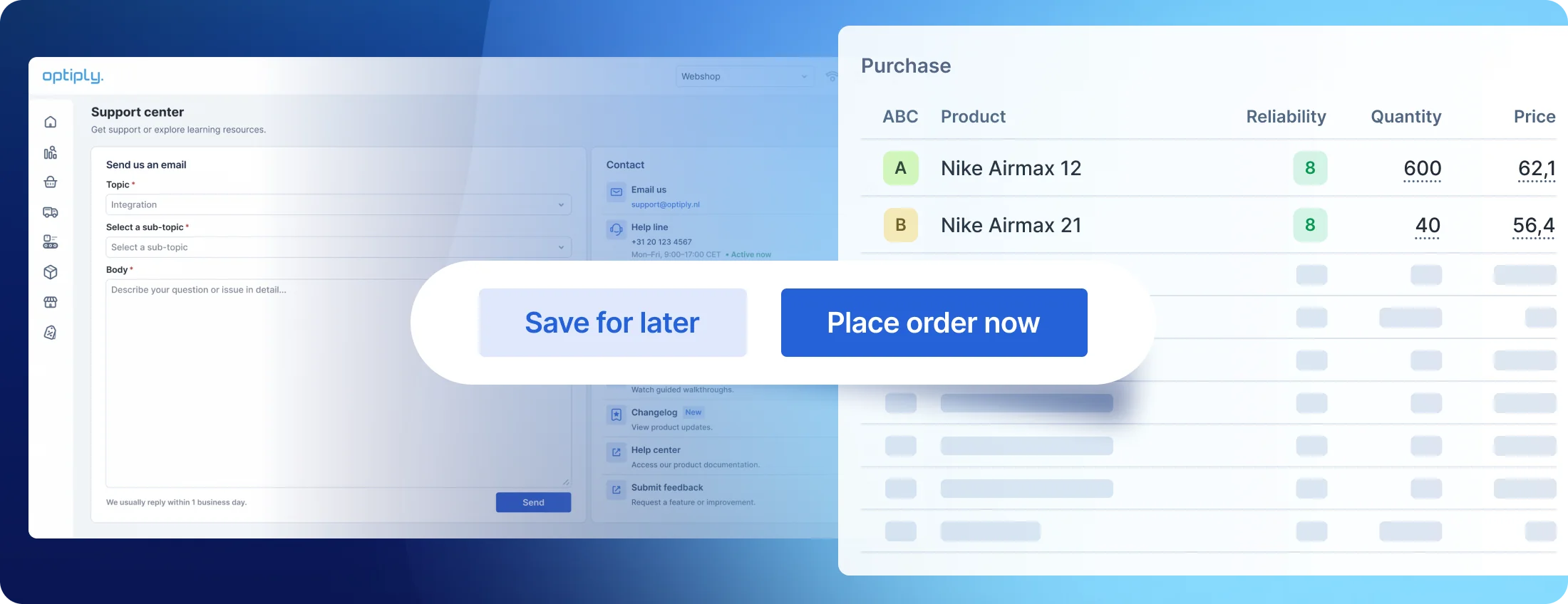
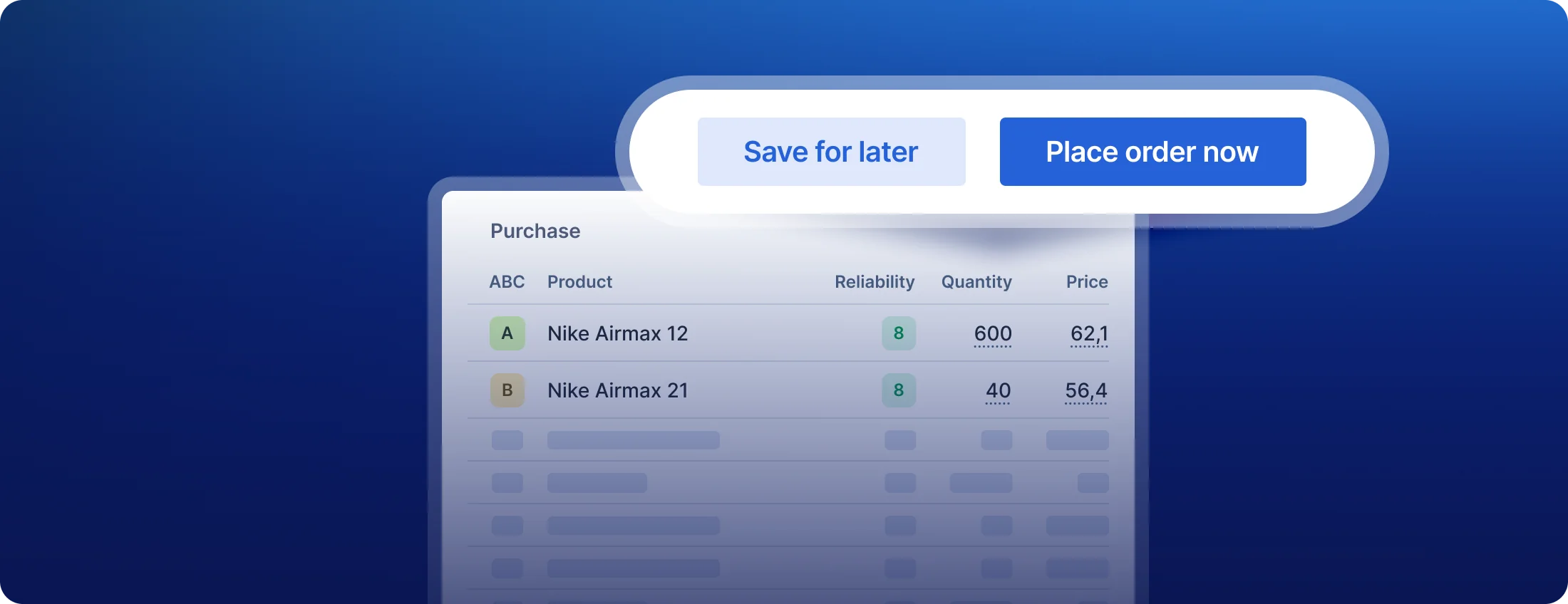
Place orders in one click with the Place order button
Until now, every order went through a draft step before it was placed. That's useful when you want to double-check something, but it's an extra step when you've already made up your mind.
With the new Place order button, you place the order directly from the proposed order lines with a single click. Want more time to think it over? Save it as a draft instead, the same way you always could. You spend less time clicking through routine orders and keep drafts for the ones that deserve a closer look.
Adjust order sizes with decimals
This one came straight from user requests. When you adjust an order size, you can now enter decimal values, such as 1.50, and Optiply recalculates its purchase advice based on the new size.
It gives you finer control whenever whole numbers are too blunt, for example with products you buy by weight or length.
Decide when products come back with Phase-out
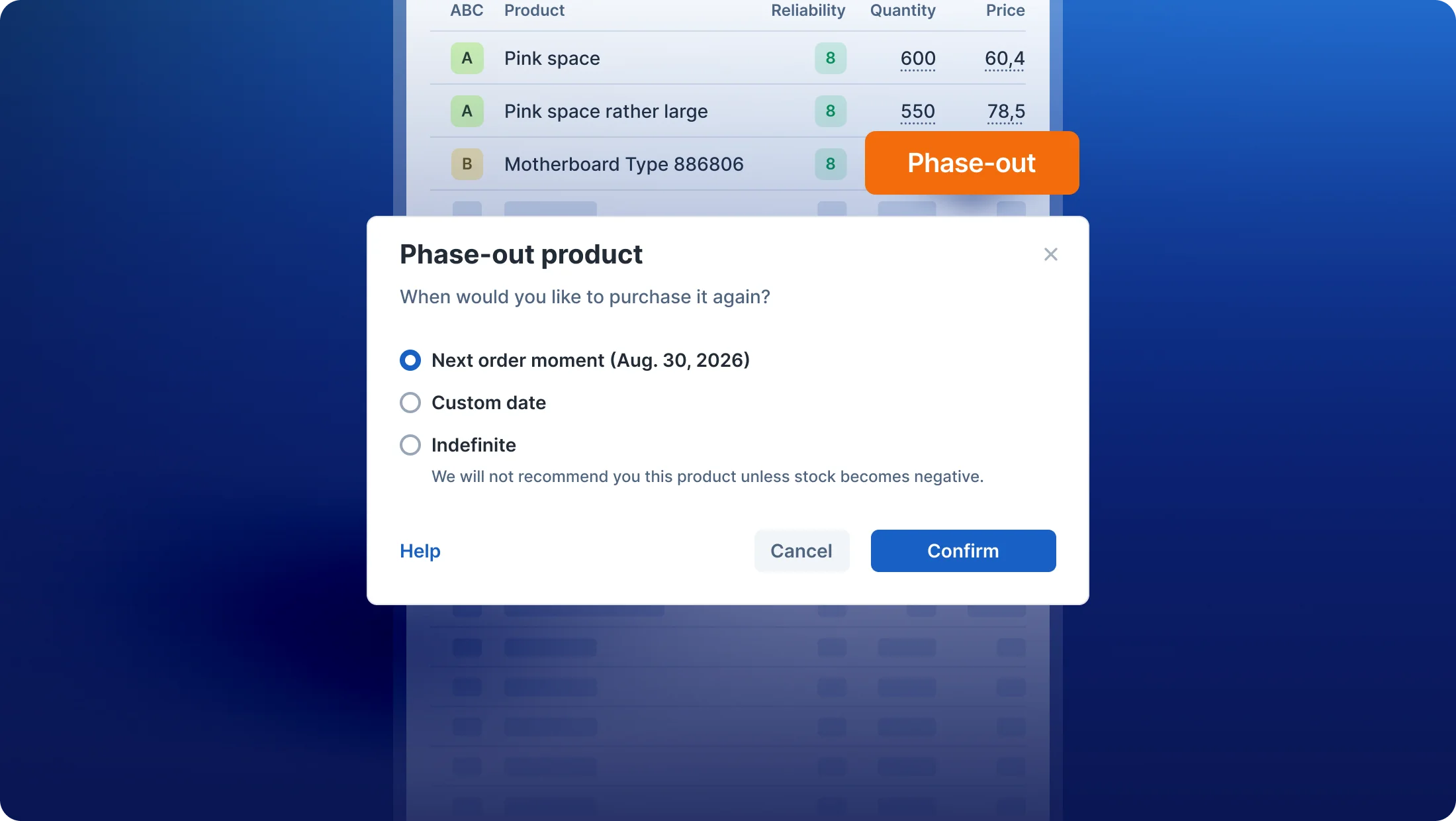
We've replaced snoozing with a clearer feature called Phase-out. When you're editing an order and want to leave a product out, Phase-out gives you several options for when Optiply should look at it again, such as a date you choose or, where it's shown, the next order moment.
Instead of a vague snooze, you make a deliberate choice about each product you hold back. That makes your order edits easier to follow, both for you and for anyone else on your team.
What's new on the deliveries page?
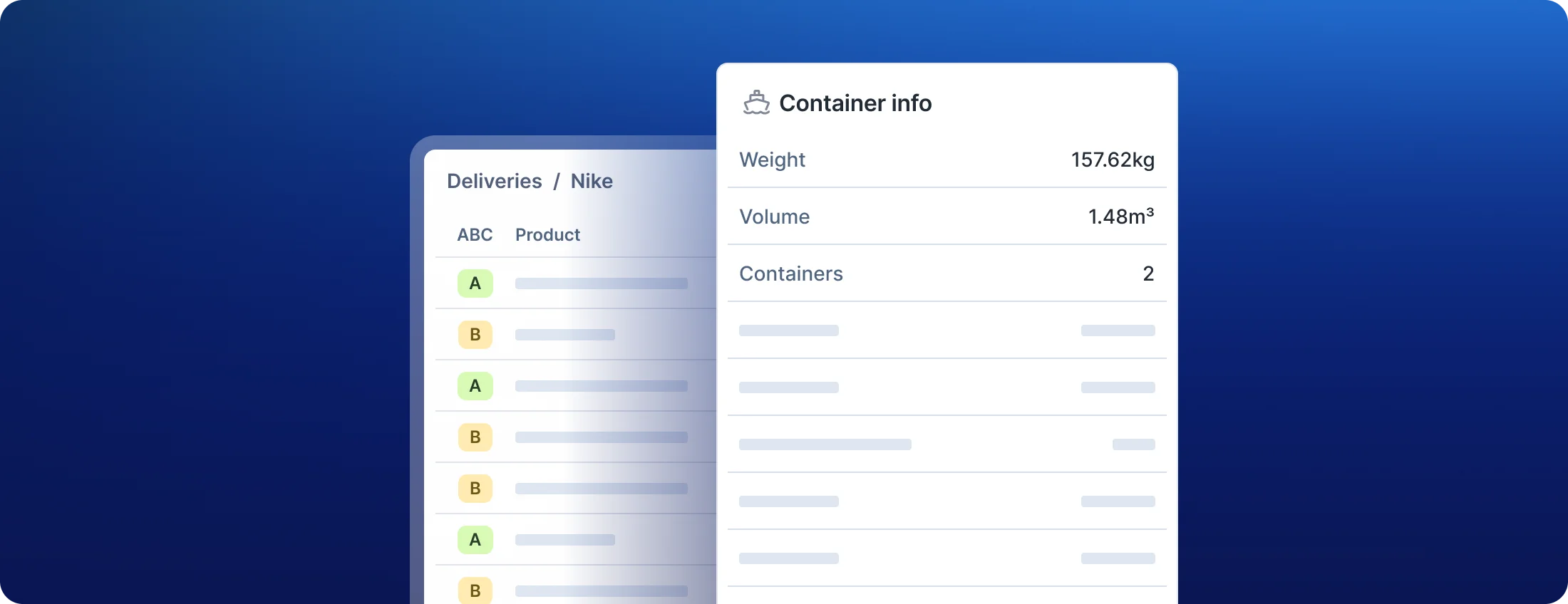
If your stock arrives in containers, planning around incoming deliveries just got easier. The side panel on the deliveries page can now show the total weight, total volume and number of containers for a delivery, whenever those figures are available.
When you're planning warehouse space or checking a shipment with your logistics partner, the numbers you need are right there. No switching screens, and no adding things up in a spreadsheet.
Where can you get help in Optiply now?
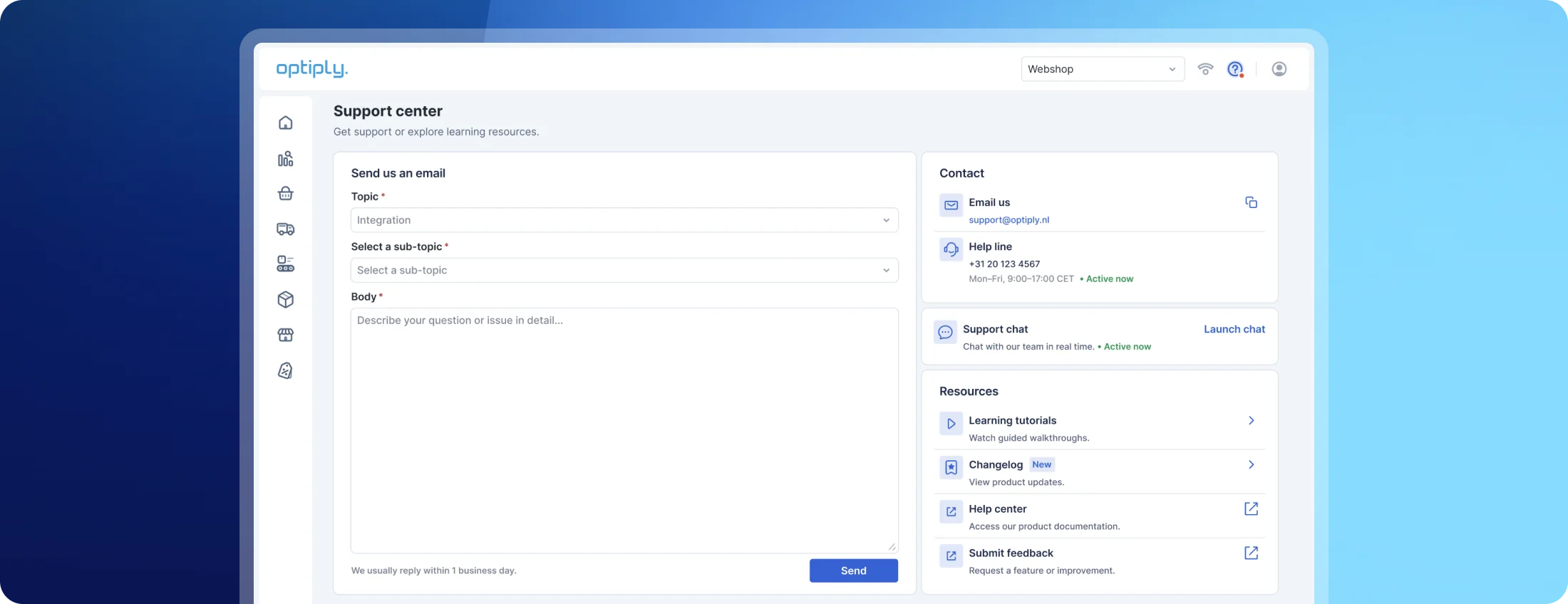
Getting an answer no longer means searching through old emails. Three updates bring support closer to where you're working:
- Support center. One place in Optiply to send a message, start a live chat, or find tutorials and documentation.
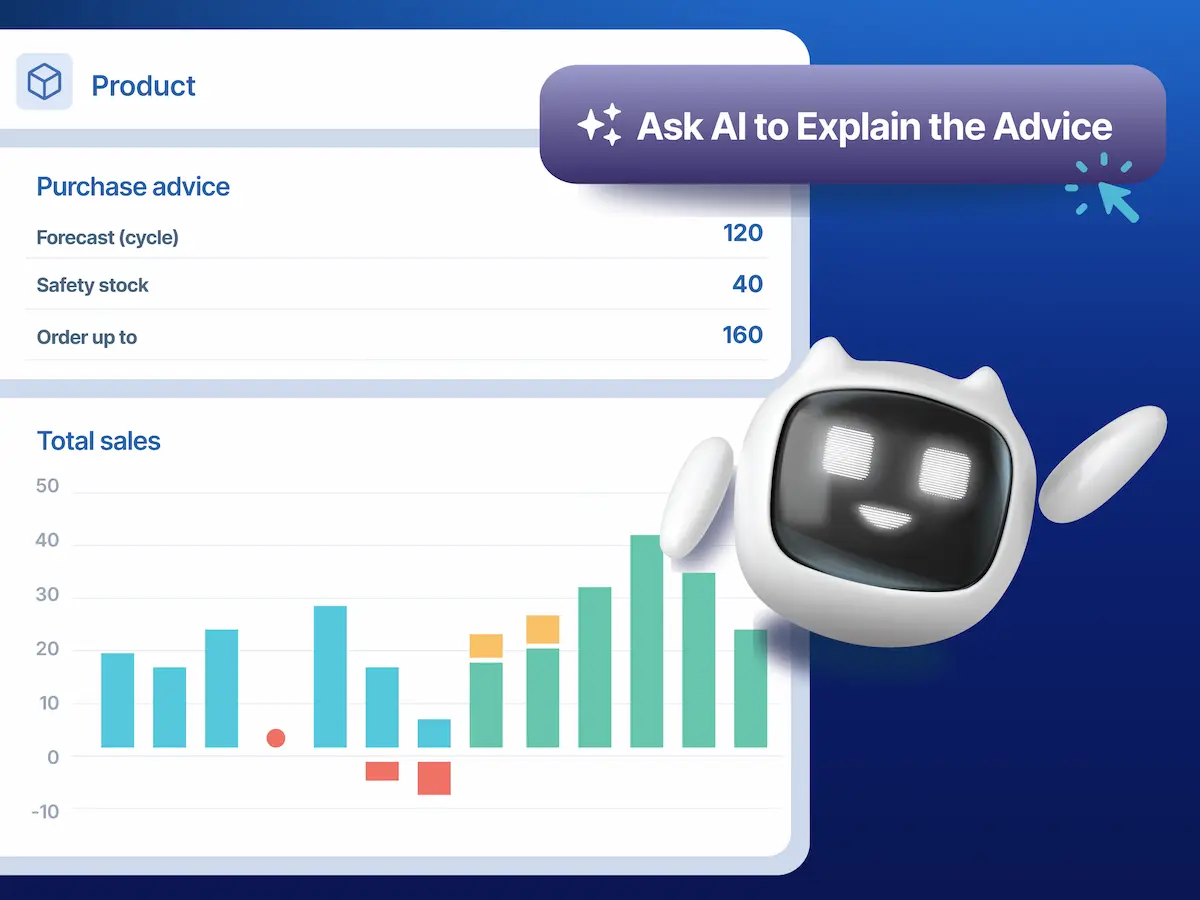
- AI Assistant floating button. The AI Assistant now sits on a permanent button, so you can ask a question, start a plan or run an analysis from any screen.
- Resizable AI Assistant panel. Drag the panel wider when you're reading a big table, or make it smaller so your work stays in view.
Curious how far the AI Assistant can go? Read what an AI agent can actually do for your procurement team, or catch up on how we built the Supply Chain Agent.
More time for the decisions that need you
Optiply's supply chain agent predicts demand, prepares and places your orders and explains every decision it makes. This round of updates makes the parts you still handle yourself faster, so your day goes to supplier conversations and planning for peak season instead of admin. Want to see every change as it ships? Follow our public changelog.
New to Optiply? Book a 15-minute demo and we'll show you how quickly you could go from order proposal to placed order with your own suppliers.
Answers to frequently asked questions


.webp)